
Applicable Products
| Part number | Description |
| QUARTZ-22-LTE (EU) | Dual Port Dual SIM LTE Router (EU) |
| QUARTZ-COMPACT-11-LTE (EU) | Single Port Compact LTE Router (EU) |
| QUARTZ-COMPACT-G11-LTE (EU) | Single Port Compact LTE Router (EU) with GPS |
| QUARTZ-GOLD-21-5G (GL) | Dual Port Gigabit Ethernet 5G NR Router (GL) |
| QUARTZ-GOLD-W21-5G (EU) | Dual Port Gigabit Ethernet 5G NR Router (EU) |
| QUARTZ-GOLD-W21-5G (GL) | Dual Port Gigabit Ethernet 5G NR Router (GL) |
| QUARTZ-GW22-LTE (EU) | Dual Port Dual SIM LTE Router (EU) with GPS |
| QUARTZ-LITE-11-LTE (EU) | Dual Port Small Footprint LTE Router (EU) |
| QUARTZ-LITE-21-LTE (EU) | Dual Port Small Footprint LTE Router (EU) |
| QUARTZ-LITE-G21-LTE (EU) | Dual Port Small Footprint LTE Router (EU) with GPS |
| QUARTZ-LITE-GW21-LTE (EU) | Dual Port Small Footprint LTE Router (EU) with GPS |
| QUARTZ-LITE-W21-LTE (EU) | Dual Port Small Footprint LTE Router (EU) |
| QUARTZ-ONYX-GW42-5G (GL) | Quad Port Gigabit Ethernet 5G NR Router (GL) with GPS |
| QUARTZ-ONYX-W42-5G (GL) | Quad Port Gigabit Ethernet 5G NR Router (GL) |
| QUARTZ-W22-LTE (EU) | Dual Port Dual SIM LTE Router (EU) |
What is ZeroTier?
ZeroTier is a software that creates a virtual private network (VPN) solution.
ZeroTier VPN supports client to client communication, where several clients are connected to the central server and securely communicate with each other using end to end encryption.
ZeroTier client is compatible with Window 11, Android, MacOS, Linux, Raspberry Pi and Docker Operating Systems.
Objective
This application note shows how to configure and use a QUARTZ router as a ZeroTier client. The Zero Tier server to which it is connecting is running on another platform. VPN traffic is not passing through a server. The purpose of server is to match clients.
The most likely reason a VPN is used in the context of an industrial router is to allow secure remote access to a corporate network and allow encrypted end to end communications between clients.
Therefore, Siretta recommends using a cabled connection between the QUARTZ 5G router and the devices connected to it (the routers clients) when using a VPN to minimise the possibility that this connection be intercepted or monitored.
ZeroTier makes it quite easy to set up and use a VPN tunnel.
Solution
When Zerotier client is installed and configured to any device with a compatible operating system, the device can directly and securely communicate with the Siretta router using its IP address, when they are connected to the same network using Zerotier VPN.
In this application note Zerotier client is installed and configured in a Windows 11 laptop and communicates with built-in Zerotier client in the Siretta router.
Requirements
- Window 11 Laptop – (Client)
Demonstration of Solution
1. Follow router quick start guide for initial router settings.
2. Wait for the router to connect to the cellular network.
3. Confirm that router has received IP addresses (See below).

4. Follow ZeroTier Quick Start Guide to create a new account if you don’t have one.
5. Once an account is created you will be presented with the following page.
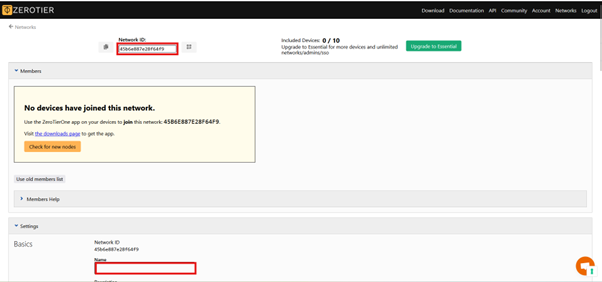
6. Take a note of a Network ID (5b6e887e28f64f9 for this setting).
Note: You may have a different network ID depending on your settings.
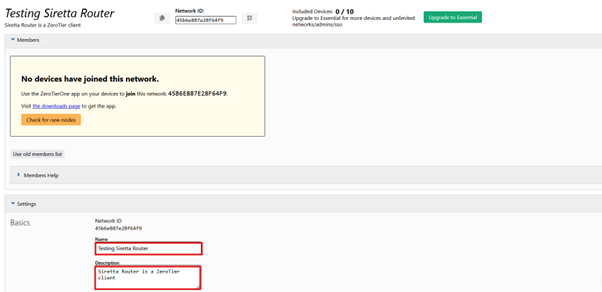
7. In basic setting you can name your network to a name of your choice. For this setting “Testing Siretta Router” was used.
8. In the description box, you can add any description to reflect the purposes of your network.
9. For this setting description of “Siretta Router is a ZeroTier client” was used.
10. After adding the information above, the page will look like:
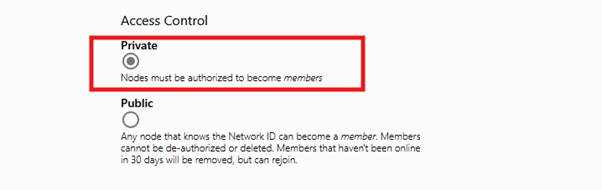
11. Check “Private” radio button in Access Control.
Note: This setting will allow client to be authorised first before joining the network (See below).
12. Other setting is Public where client can join to the network just by using network ID without authorisation.
Note: For security reasons Siretta does not recommend setting network as Public.
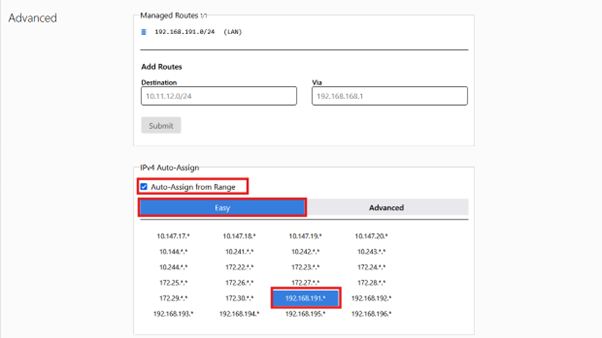
13. Click advanced settings IP4.
14. Check Auto -Assign from range box.
15. Select Easy option (see below).
16. Select IP address range of your choice.
Note: For this guide setting of “192.168.191.*” was selected.
17. Leave the settings for IPv6 Auto-Assign unchanged.
Note: Siretta Router does not have a support for IPv6.
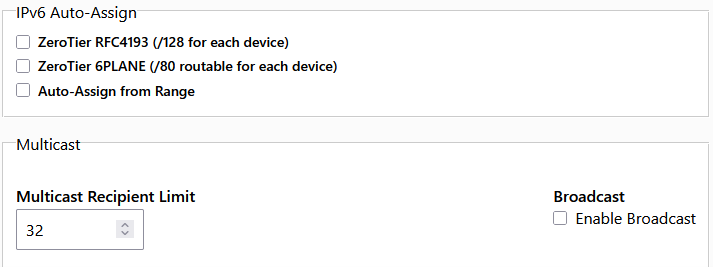
18. Leave the settings for DNS unchanged.
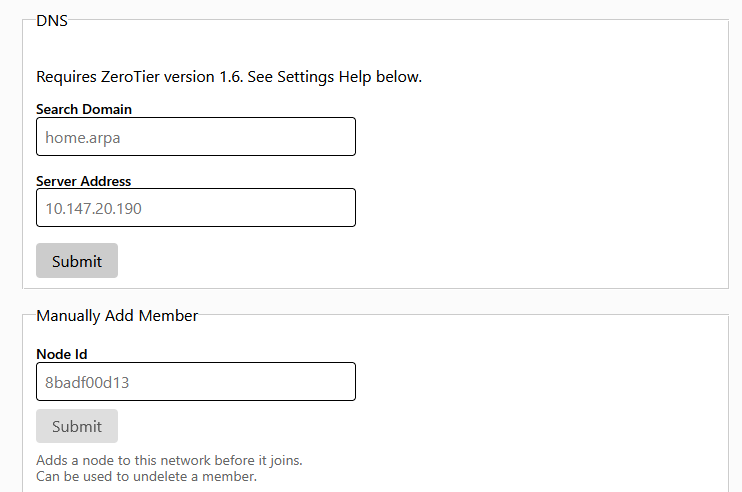
19. Setting for a network is now complete.
20. Clients can be added to the network by using Network ID: 45b6e887e28f64f9.
Note: If you have encountered any problem during network settings, please see “Settings Help” section or contact Siretta support [email protected]
Adding Clients to a Network
Adding Siretta Router to a ZeroTier Network
21. In Siretta router GUI navigate to VPN tab (See below).
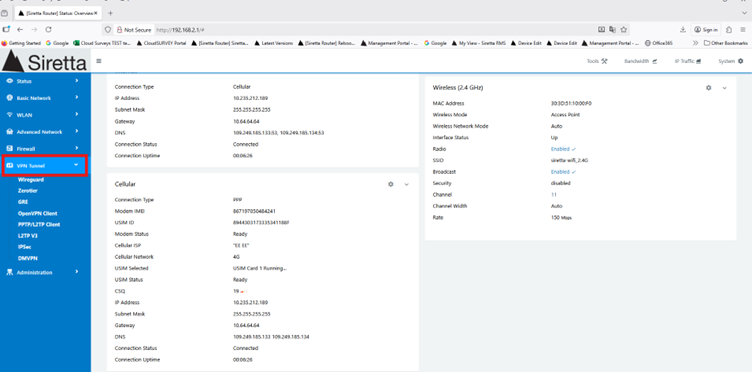
22. Click Zerotier tab.
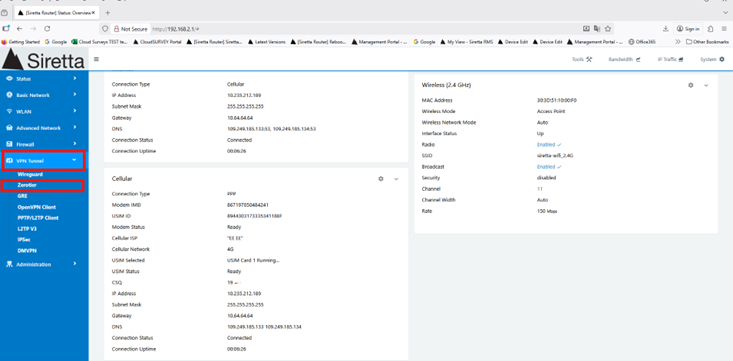
Note: If the Zerotier tab is not present in your router then you may have an older firmware version contact [email protected] for firmware update.
23. You will be presented with the screenshot below.
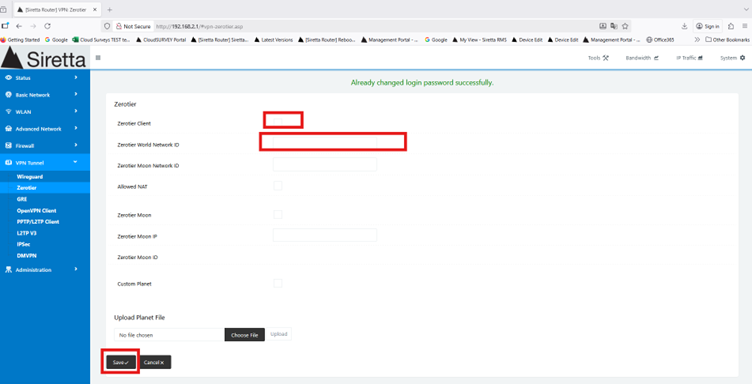
Note: Current settings do not use the following parameters Zerotier Moon Network ID, Allowed NAT, Zerotier Moon, Zerotier Moon IP, Zerotier Moon ID, Custom Planet and Uploading Planet File, these parameters are reserved for users who create and host their own Zerotier server.
24. Check Zerotier Client box.
25. Add Zerotier World Network ID.
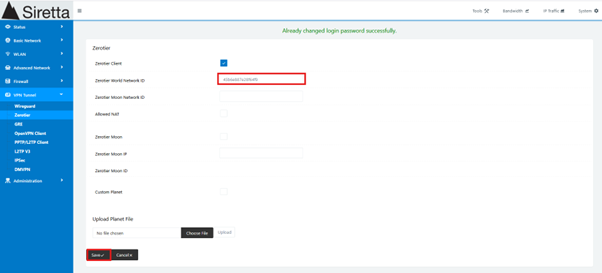
26. Click Save.
27. Wait for about 10 seconds for service to restart.
28. You have successfully added router to Zerotier server.
29. Confirm that router is added to Zerotier user interface (See below).
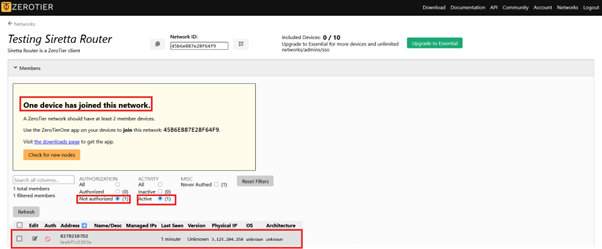
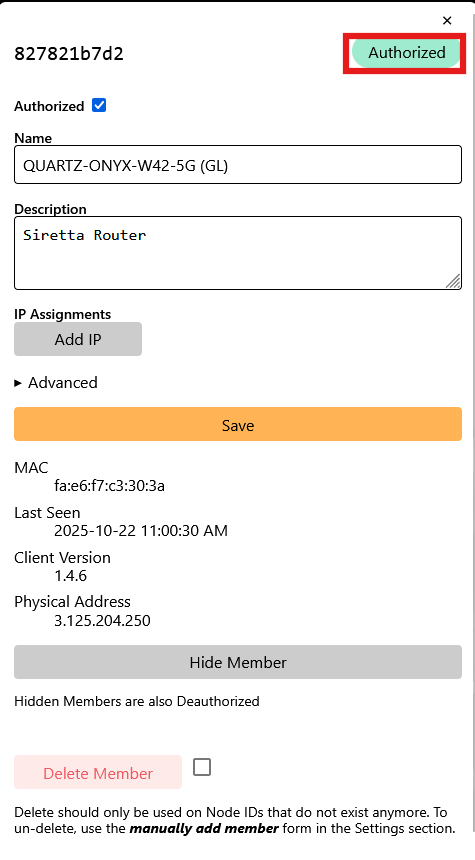
30. Router is added to the network but no authorised to use network service.
31. Click Edit tab, you will see screenshot below.
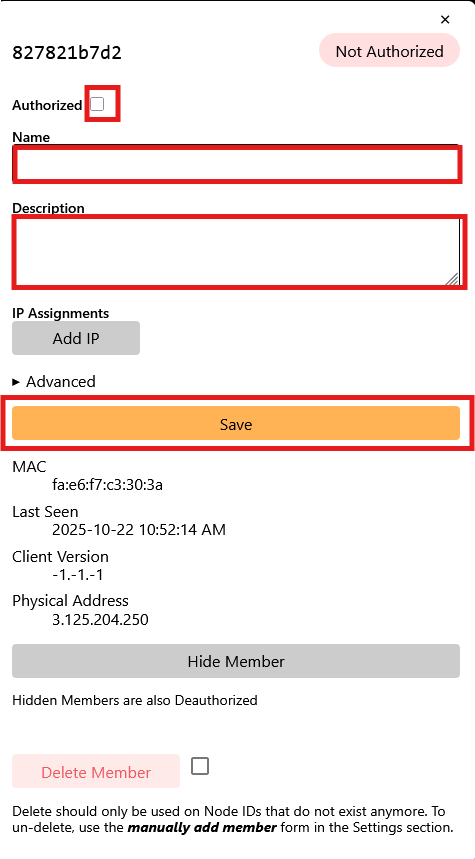
32. Check Authorised box to Authorize device to join and use network service.
33. Add name of your choice, for this setting “QUARTZ-ONYX-W42-5G (GL)” was used.
34. Add description preferred to your settings, for this example “Siretta Router “was used.
35. Click Save button.
36. You have successfully authorised the Siretta Router to join the network (See Below).
37. Refresh ZeroTier user interface to see new device is added to the network and has been given a local IP address.
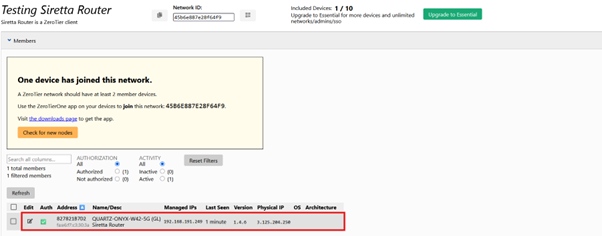
38. QUARTZ-ONYX-W42-5G (GL) was assigned an IP address of 192.168.191.249, this IP address can be used to communicate with other clients added to the same network.
39. Navigate to Basic Network settings in a router GUI.
40. Select Routing tab, you will see ZeroTier route as seen below.
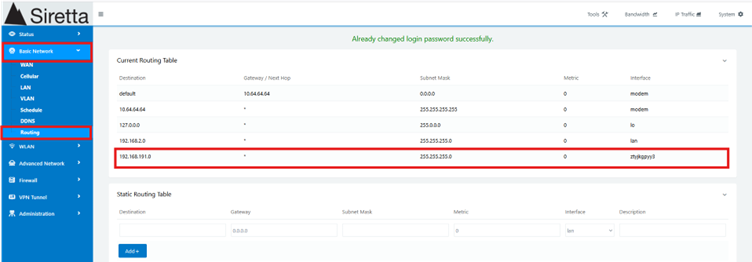
41. QUARTZ-ONYX-W42-5G (GL) is now added to the Zerotier Server and can be accessed using IP address of 192.168.191.249 by another client connected to a same network.
Adding Window 11 Laptop to a ZeroTier Network42.
Download Zero Tier to your PC depending on your operating system, for this setting Microsoft Windows was downloaded

43. Run ZeroTier One.msi installer to your PC
44. Click Install.
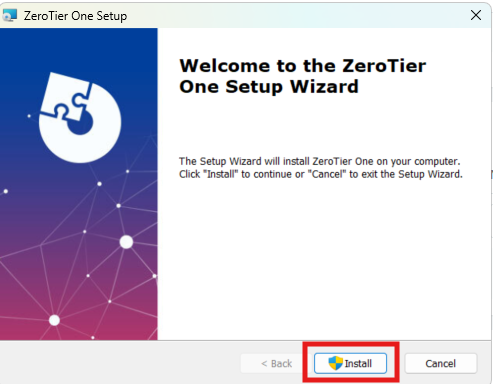
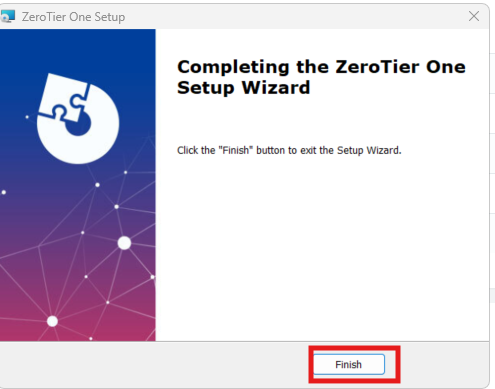
45.Click Finish.
46. You have successfully installed ZeroTier Client to the Window 11 laptop.
47. Right Click Zerotier icon in system tray 
48. You will be presented with the following menu.
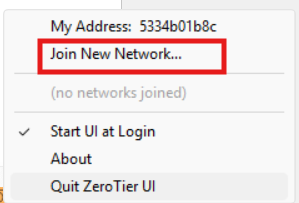
49 .Click Join network, you will be presented with dialog box below to enter 16-digits Network ID.
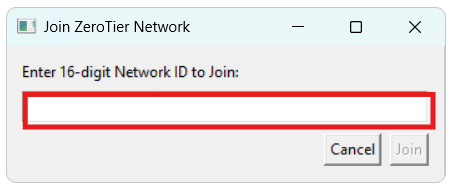
50. Enter Network ID, which is 45b6e887e28f64f9 for this setting.
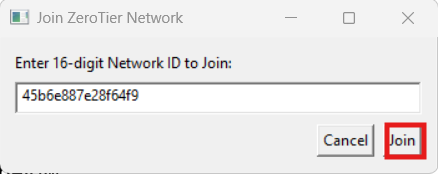
51.Click Join
52. You have now added Window 11 laptop as a client to Zerotier Server.
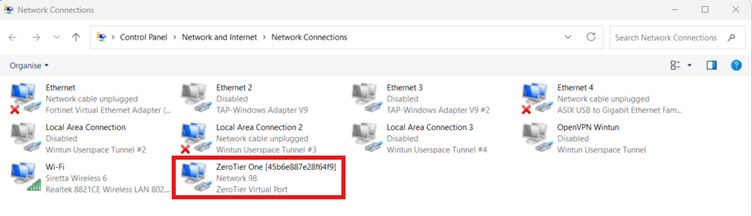
53. Open View Network connection in the laptop, you will see Zerotier network is added.
54. Confirm that Laptop is added to a server in a Zerotier user interface (See below).
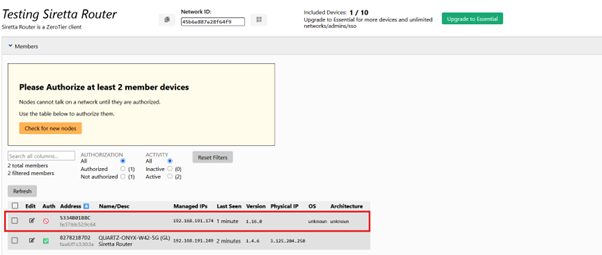
55. Laptop is added but not authorised to use network service.
56. Authorise Laptop by clicking edit check box.
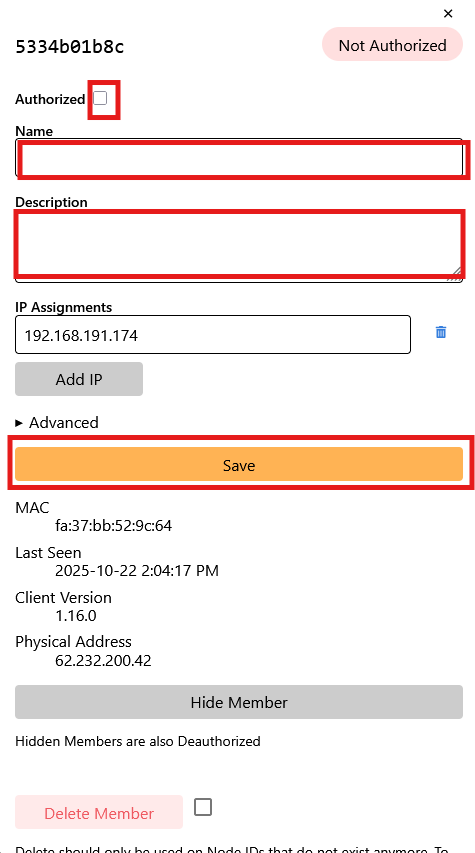
57. Check Authorised check box above.
58. Add laptop name of your choice, for this setting “Window 11 Laptop” was used.
59. Add description of your choice, for this setting Laptop Client was used (See below).
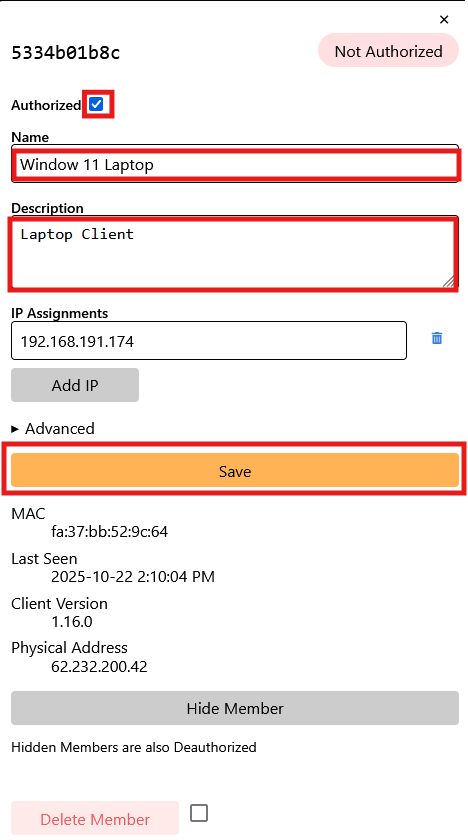
60. Click Save.
61. Laptop now is authorised and added to a network.
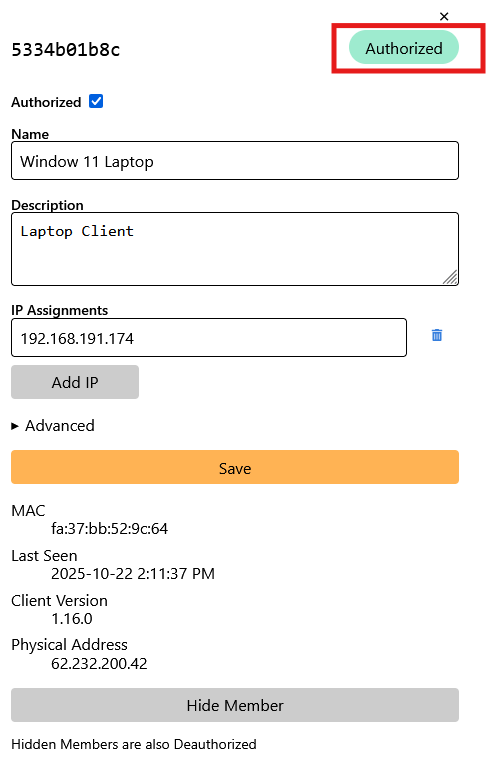
62. Check on Zerotier user interface, you will see Window 11 Laptop added to the member list as seen below.
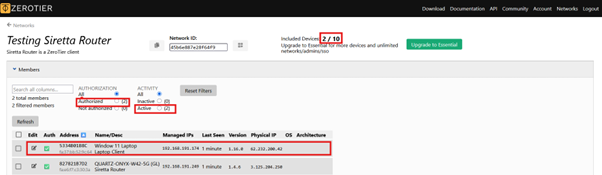
63. Window 11 Laptop is successfully added to the Zerotier server with the local IP address of 192.168.191.174.
Testing communication between ZeroTier clients.
64. Use Window 11 Laptop to ping QUARTZ-ONYX-W42-5G (GL) by using an IP address of 192.168.191.249.
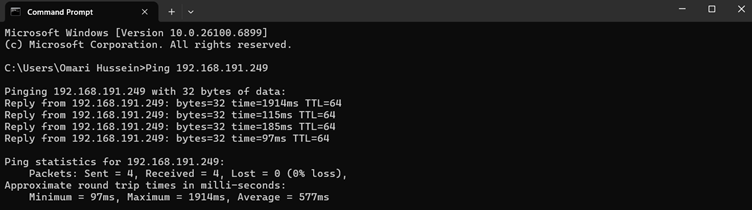
65. Ping was Successful, Window 11 Laptop can communicate with QUARTZ-ONYX-W42-5G (GL).
66. You can use Window 11 Laptop to manage QUARTZ-ONYX-W42-5G (GL).
67. Use QUARTZ-ONYX-W42-5G (GL) to ping Window 11 Laptop by using an IP address of 192.168.191.174.(See below).
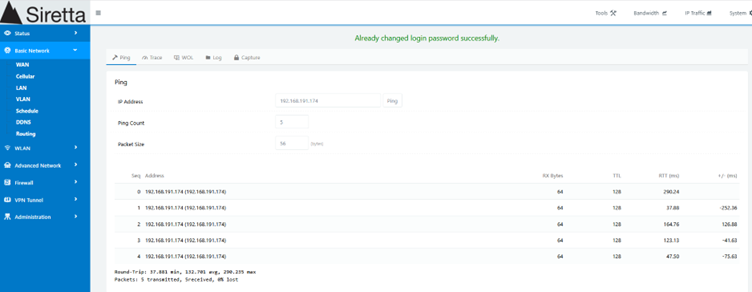
68. Ping was Successful, QUARTZ-ONYX-W42-5G (GL) can communicate with Window 11 Laptop.
Additional Reading
| Description | Author |
| QUARTZ-ONYX Software Manual | Siretta Ltd |
| ZeroTier Website | ZeroTier |
| ZeroTier Quick Start Guide
|
ZeroTier |
| Router Quick Start Guide | Siretta Ltd |
